/filters:quality(90)/fit-in/970x750/coros-web-faq/upload/images/97f84d49b87574f86513b1806d796911.png)
From cafe rides to multi-day backcountry expeditions, the COROS DURA is the reliable ride companion built with performance and user ease in mind. This handy article is your go-to guide for navigating with DURA. Learn how to build routes, use handy features like split screen navigation, and integrate your favorite 3rd party apps.
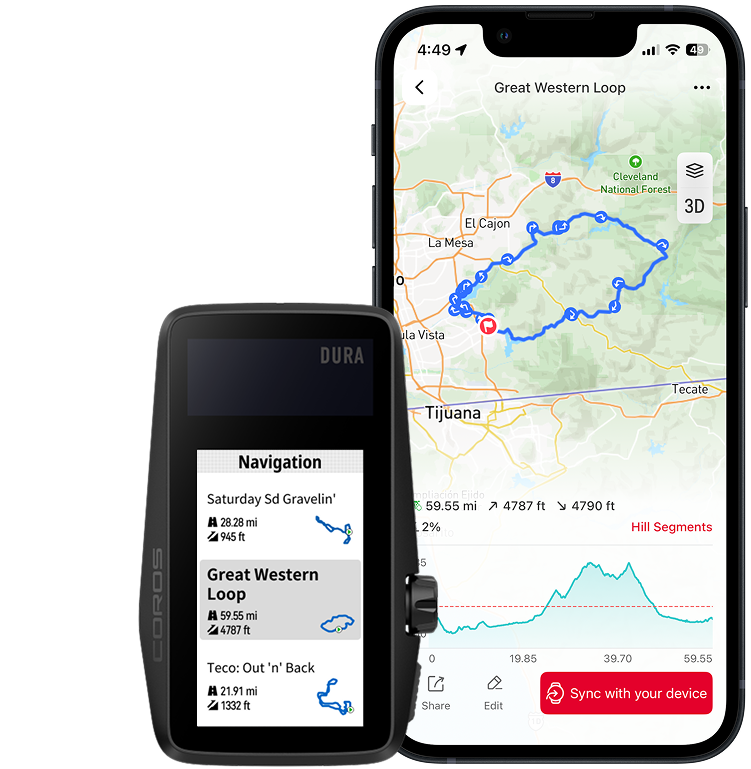
Sending a route to your device
To send a route to your DURA computer, simple follow these quick steps using the COROS app.
- Open COROS app on your mobile device
- Click on the Explore Tab
- Click on the folder icon in the upper right corner
- Select your route
- Click 'Sync with your Device'
- Select COROS DURA
Starting a route
Starting a route on your DURA is a simple task and can be done with two quick methods: from the Main Menu or after you have already started a ride.
From Main Menu
Want to start your route the moment you first swing a leg over your saddle? Follow these quick steps:
Turn on DURA > Select 'Navigation' > Select your desired route > Start riding
Mid Ride Start
Meeting friends somewhere before your planned ride? No problem. You can start your route at anytime without having to start a new activity:
Pause your current activity using the scroll wheel > Scroll and select 'Navigation' > Select your desired route > Start riding
Navigation Features
Return to Start
Inclimate weather? Run out of time? Feeling a bit lost? DURA makes it easy to retrace your steps and navigate back to the start of your activity.
Retrace your exact steps: Pause your ride > Scroll to Navigation > Select 'Back to Start'
Navigate back to start: Pause your ride > Scroll to Navigation > Select 'Navigate to Start'
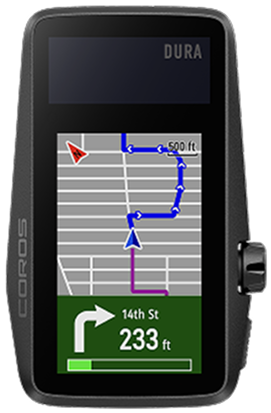
Turn by Turn
DURA takes the guess work out navigation by alerting you when a turn in your route is approaching, allowing you to focus on your training.
Turn by Turn can also be toggled off in the Navigation menu.
Split Screen Mode
Need navigation? Want to monitor import metrics like power, heart rate, or distance? DURA Split Screen conveniently allows you to have your cake and eat it too. Split Screen Mode displays up to three metrics of your choice alongside the map view of your route:
Pause your ride > Scroll to Navigation > Select 'Split Screen'
In the COROS app, you can customize which metrics are displayed alongside your navigation in Split Screen mode:
Open the COROS app > Click on the 'Profile' tab > Select COROS DURA > Select 'Activity Settings > Choose your ride type > Select 'Split Screen Mode' > Choose your desired metrics
Deviation Alerts & Rerouting
Miss a turn? We've all done that before. Never fear, DURA will promptly alert you when you go off route. Utilizing Google Maps, DURA will quickly reroute you back on track.
Navigate to Address
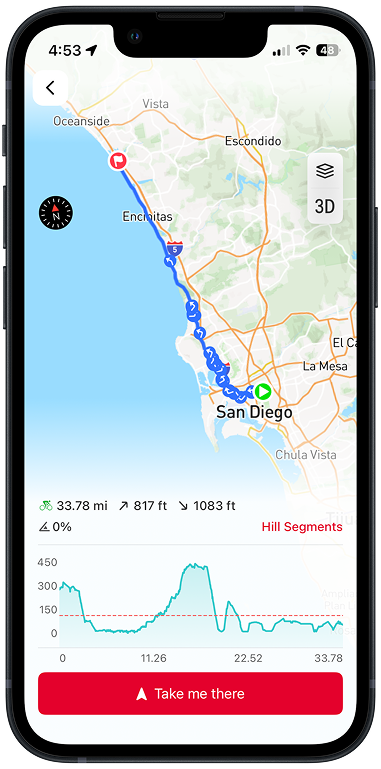
Want to take a mid-ride coffee break or swing by the gas station for snacks? Simply reroute your activity using the COROS app:
Open the COROS app > Click on the 'Explore' tab > Search for your new destination or enter an address into the search bar > Select your desired location > Click 'Navigate' > Select 'Ride' > Click 'take me there' > Select DURA > 'Start navigating'
Types of roads
DURA conveniently differentiates between shared roadways and cycling paths. Roads are represented by solid lines, while cycling paths are represented by dashed lines.
Later updates will go even further in depth, providing you with additional information like surface type (gravel, bike path, asphalt, etc).
How to Build a Route
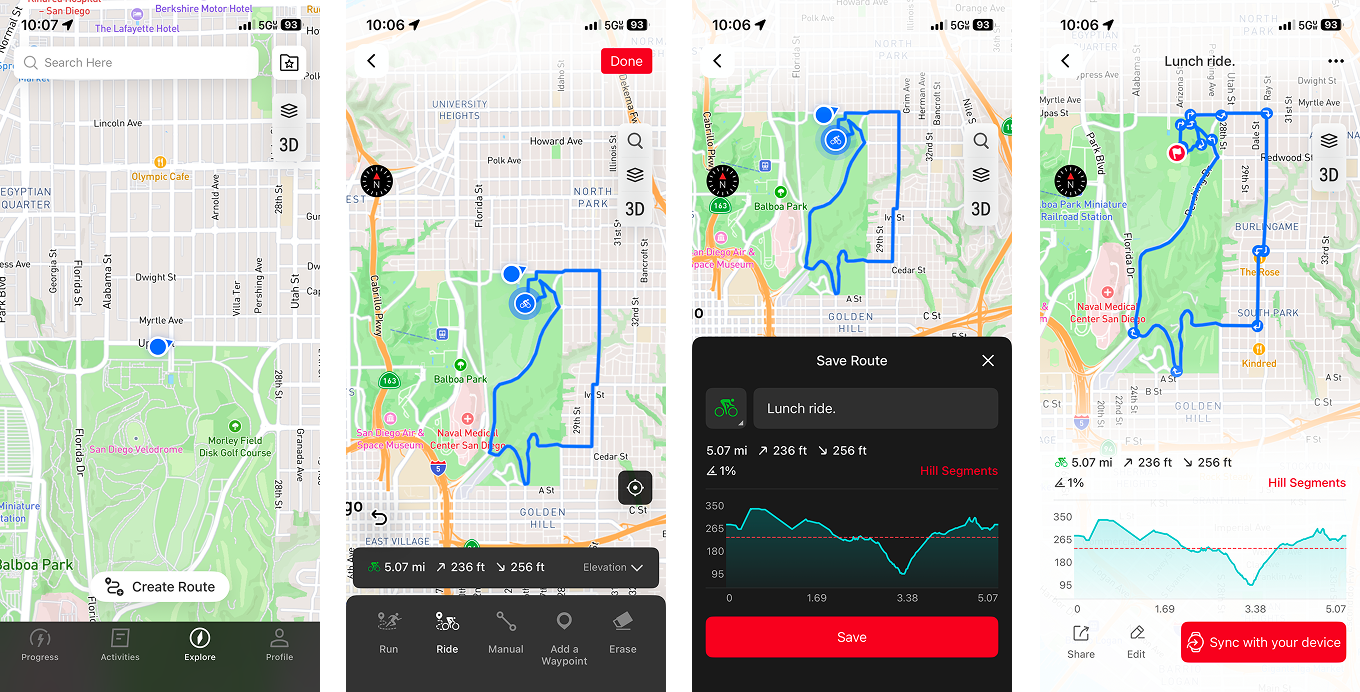
COROS makes it easy to build your route in the COROS app or import routes from popular apps like Komoot and Ride with GPS.
COROS App
Open your COROS app and navigate to the Explore tab. From there, you can create a route in minutes. The COROS route builder allows you to create detailed waypoints in your route, marking import features like bathrooms, water sources, resupply points, campsites, and more.
3rd Party Integrations
Already have a preferred mapping platform or need to import a route from a friend? We have you covered. COROS has robust integrations with third party apps like Komoot and Ride with GPS.
To connect with these apps:
Open your COROS app > Select 'Profile' > Click 'Settings' > Select '3rd Party Apps' > Click 'Data Sync' > Select your desired app and follow the onscreen instructions.
For more information on cycling with COROS, check out our DURA guide or reach out to our team.